Create New Hosting
In our control panel, you can manage multiple customers under your account, create one or more domains per customer, and then assign these either to a new hosting (as the main domain) or to an existing hosting (as a so called «Addon Domain»).
When setting up a new hosting, we recommend this order:
- Create Customer – Should the new hosting appear under its own customer and be billed separately? Then create a new customer on the Dashboard.
- Set Up Domain – For a hosting, you usually need a domain. Under «Domains» you can have a new domain registered, an existing one transferred, or only add a domain you manage yourself via an external registrar.
- Create Hosting – You can now create a new hosting and select the domain you have just set up.
Setting up the domain first is the recommended way, but not the only one: you can also create the hosting first and assign a domain later.
Proceed step by step as follows:
1. Create Customer
Create a new customer on the Dashboard if the domain and hosting should be billed separately. Otherwise, you can keep your existing customer and add more domains/hostings under it. Just remember that the domain for a hosting must always belong to the same customer.
Click to create a new customer:
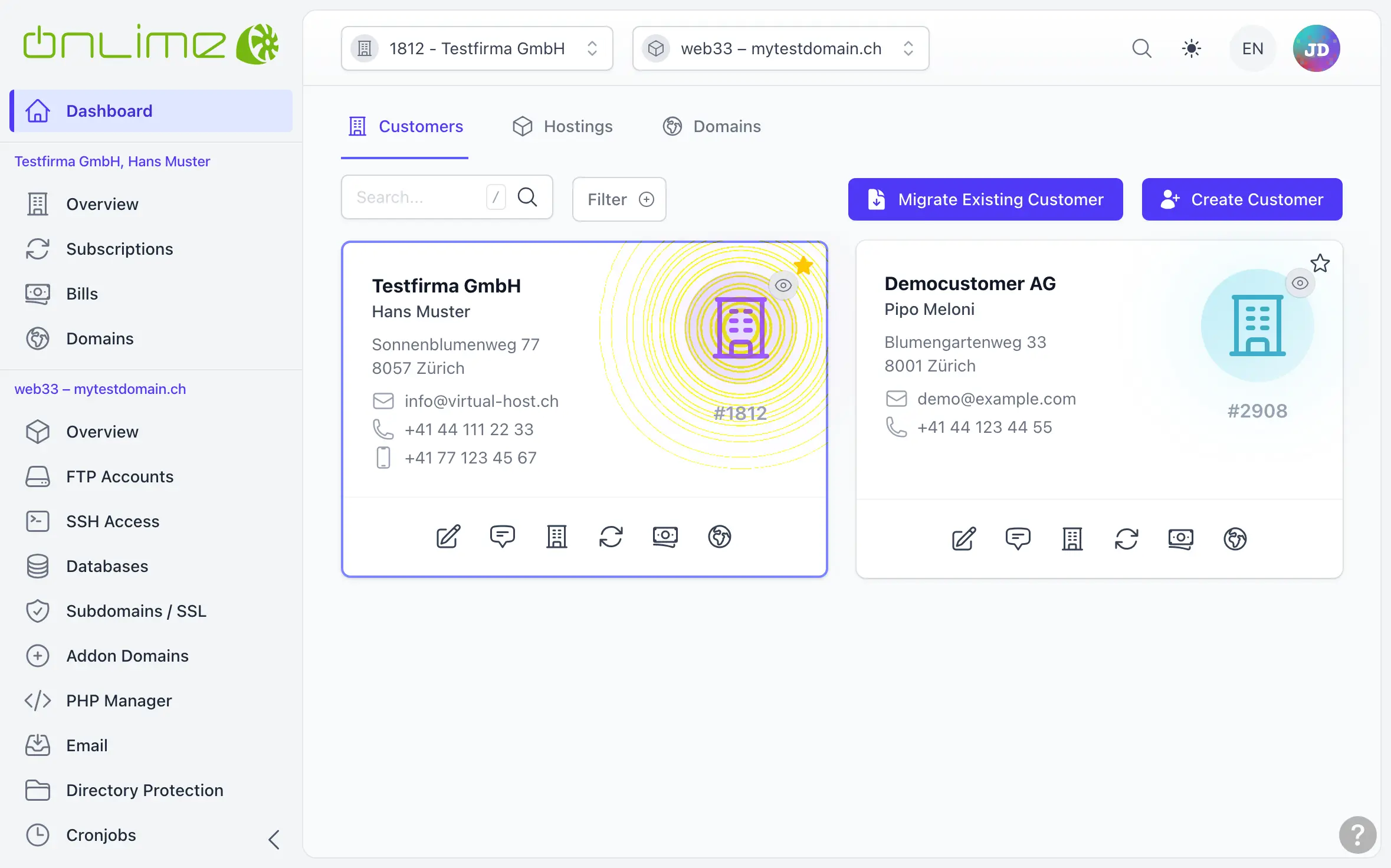
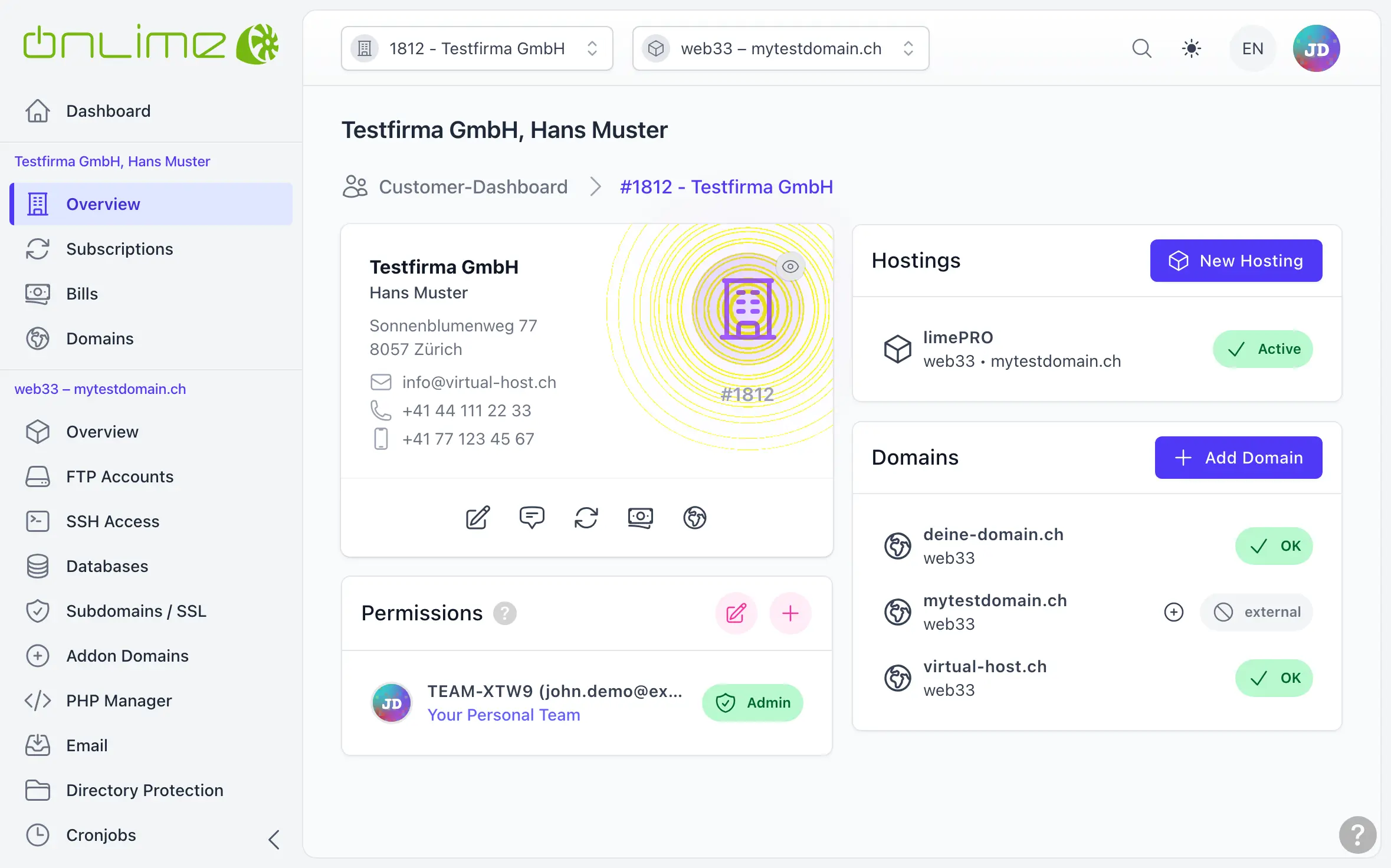
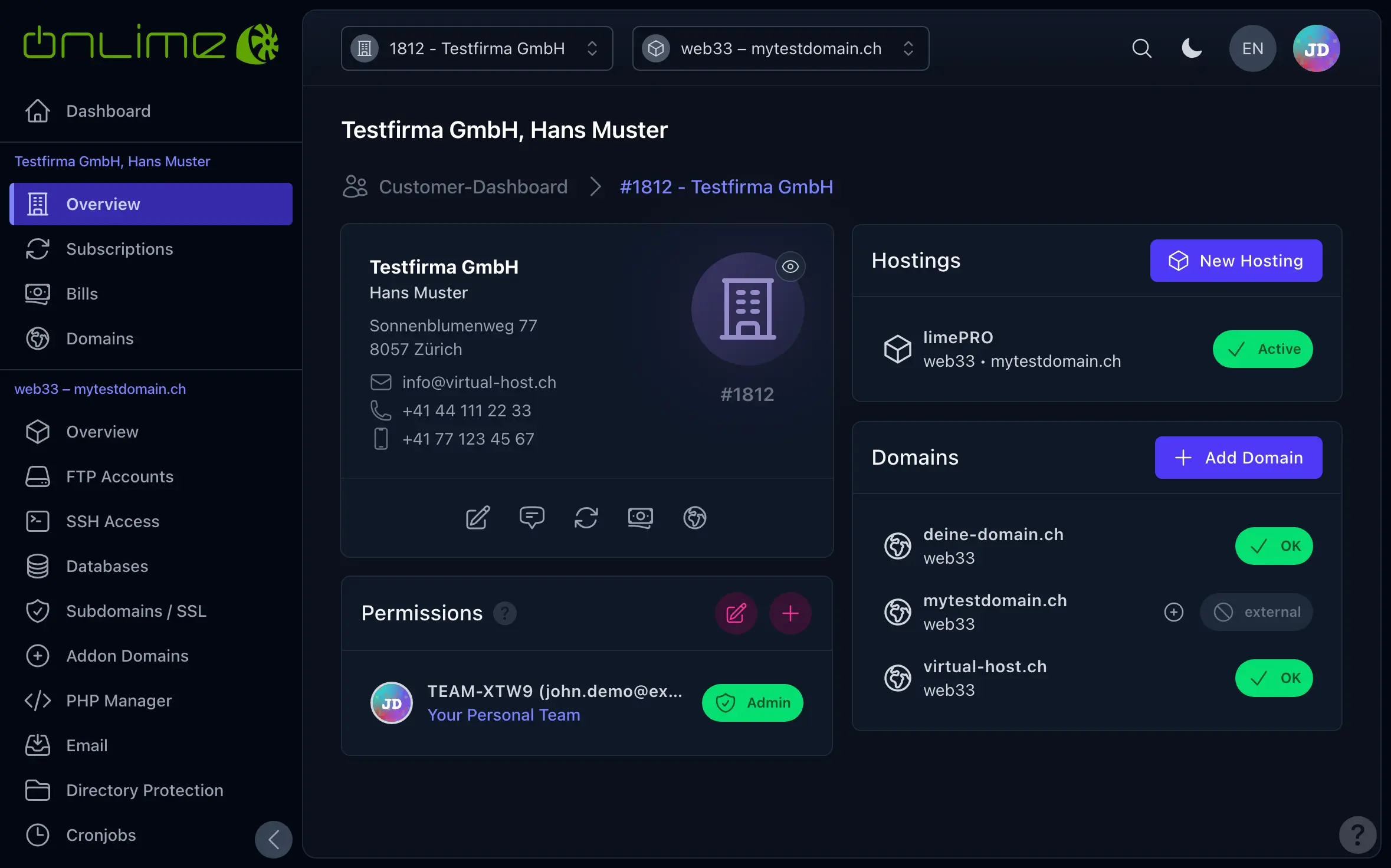
On the customer overview page, you will now see all configured hostings and domains.
2. Set Up Domain
We recommend to set up the domain before the hosting, so that you can simply select it in step 3. The button takes you to the domain search. There you decide whether we register the domain for you, transfer it to us, or whether you only add it and keep managing it at another registrar.
The whole procedure is explained step by step under Add a Domain.
Hosting first? That works too
This step is recommended, but not required. If you skip it, choose «Add new domain ...» when creating the hosting in step 3 and type the domain in: it is only added (not registered/transferred), and you can register or transfer it afterwards under Customer > «Domains».
You can even create the hosting «(without domain)» and assign a domain later. We still recommend to always assign a domain to a hosting.
Once the domain is ready, go to the customer «Overview» or «Subscriptions» and click to proceed to step 3.
3. Create Hosting
First, select your hosting package:
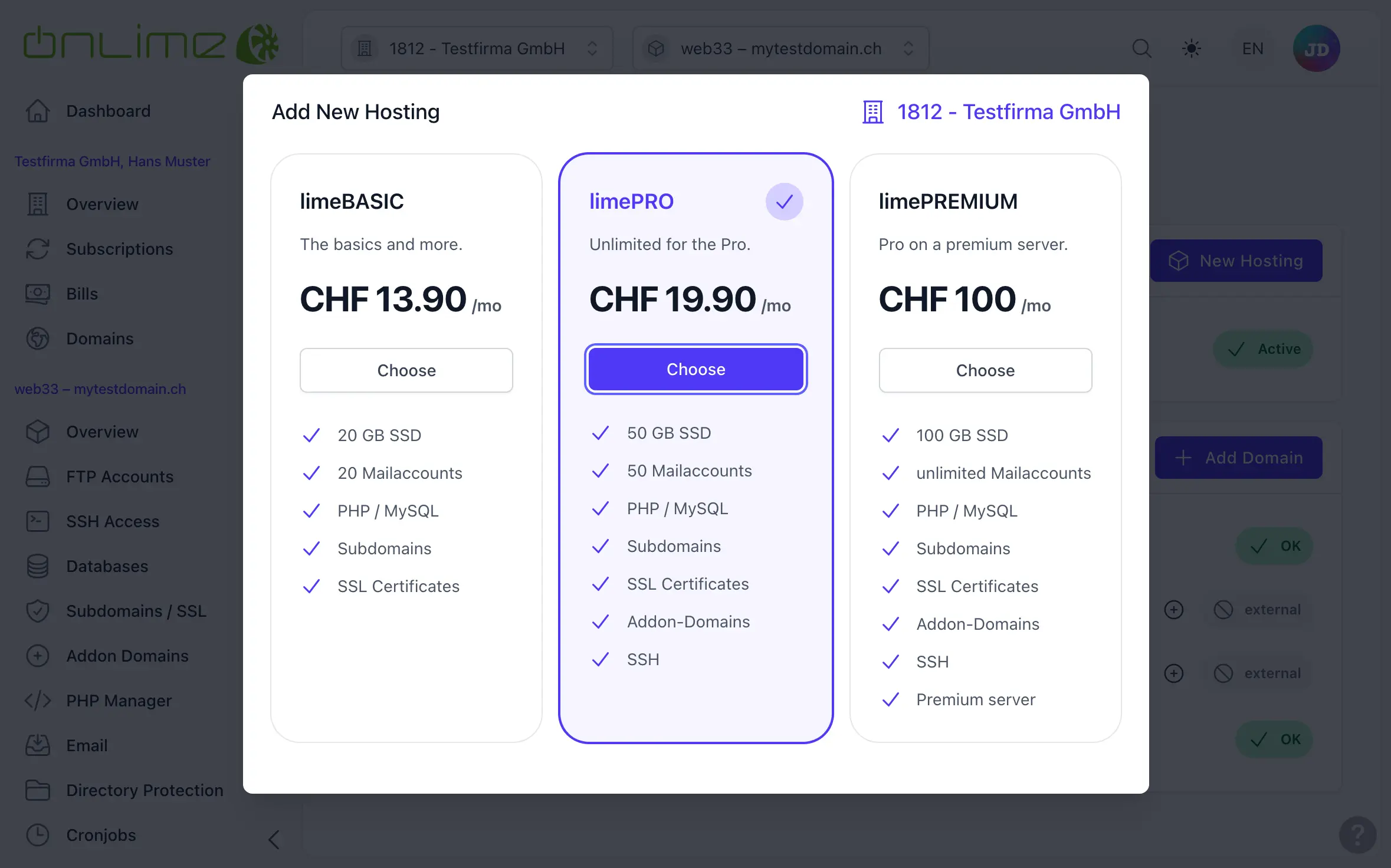
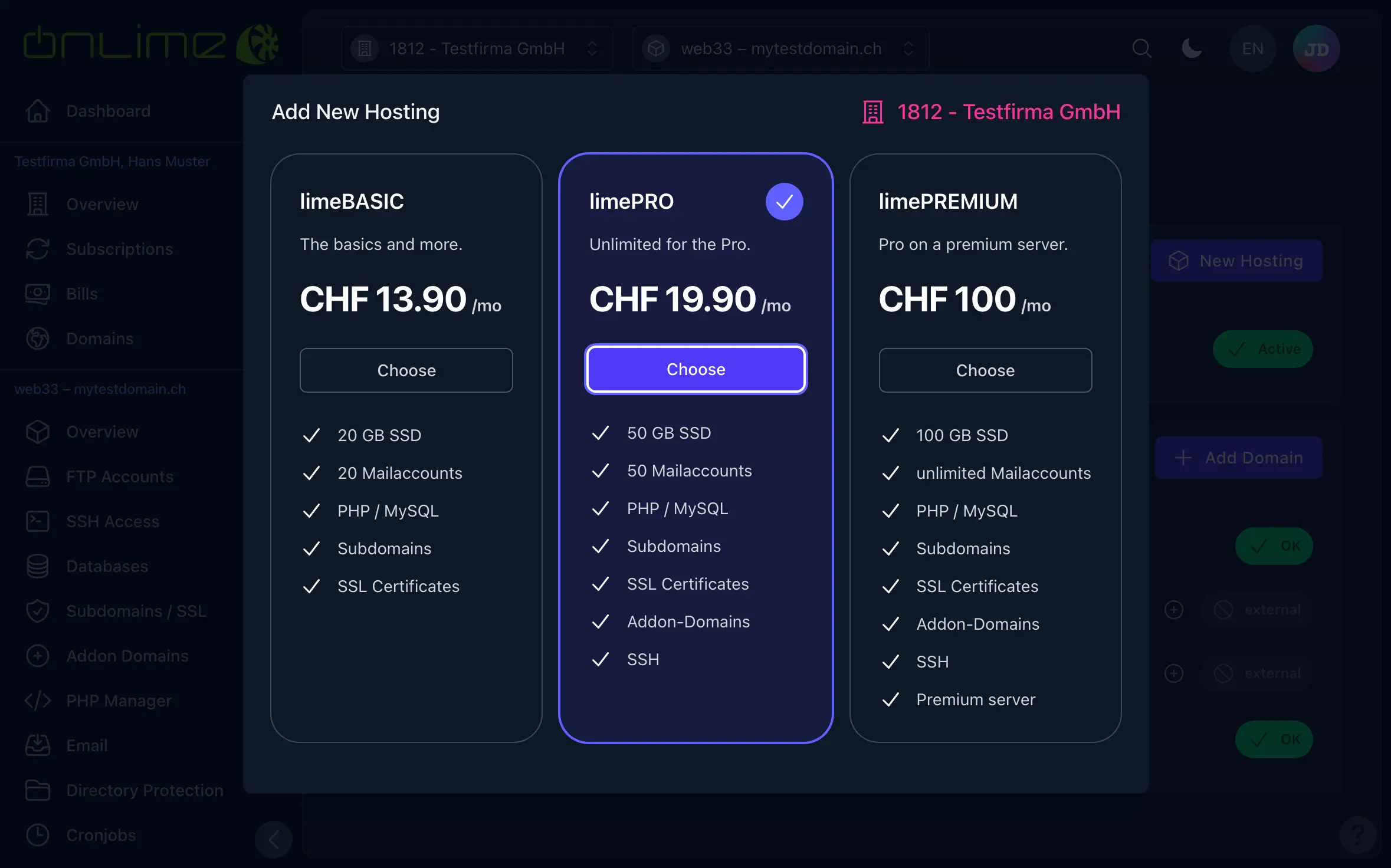
Then select the domain you have set up for it. The Accessinfo email is sent only to the listed email address and contains only the password for the primary FTPS account. Otherwise, you already have access to the newly created hosting through your control panel login.
Click to process the order.
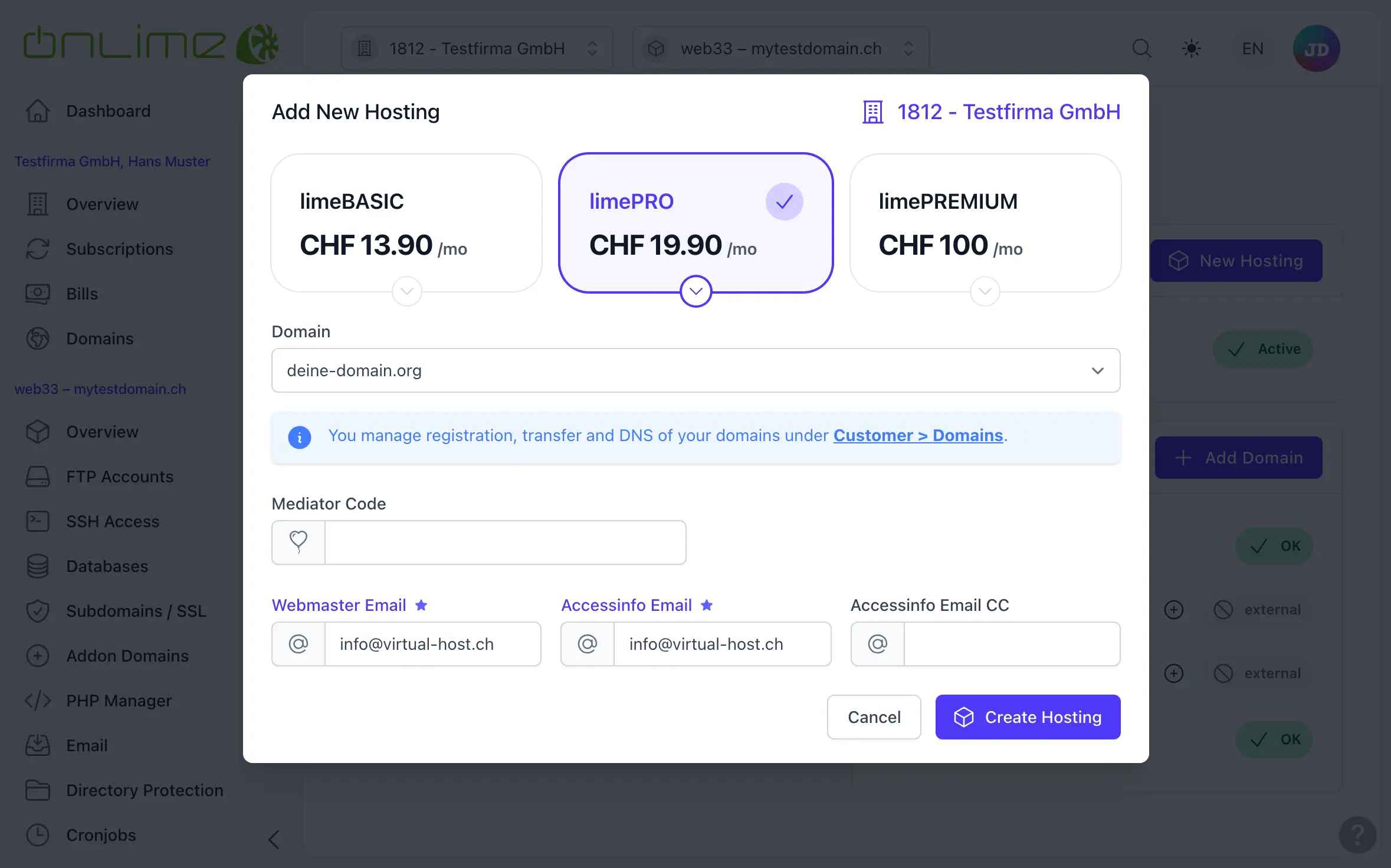
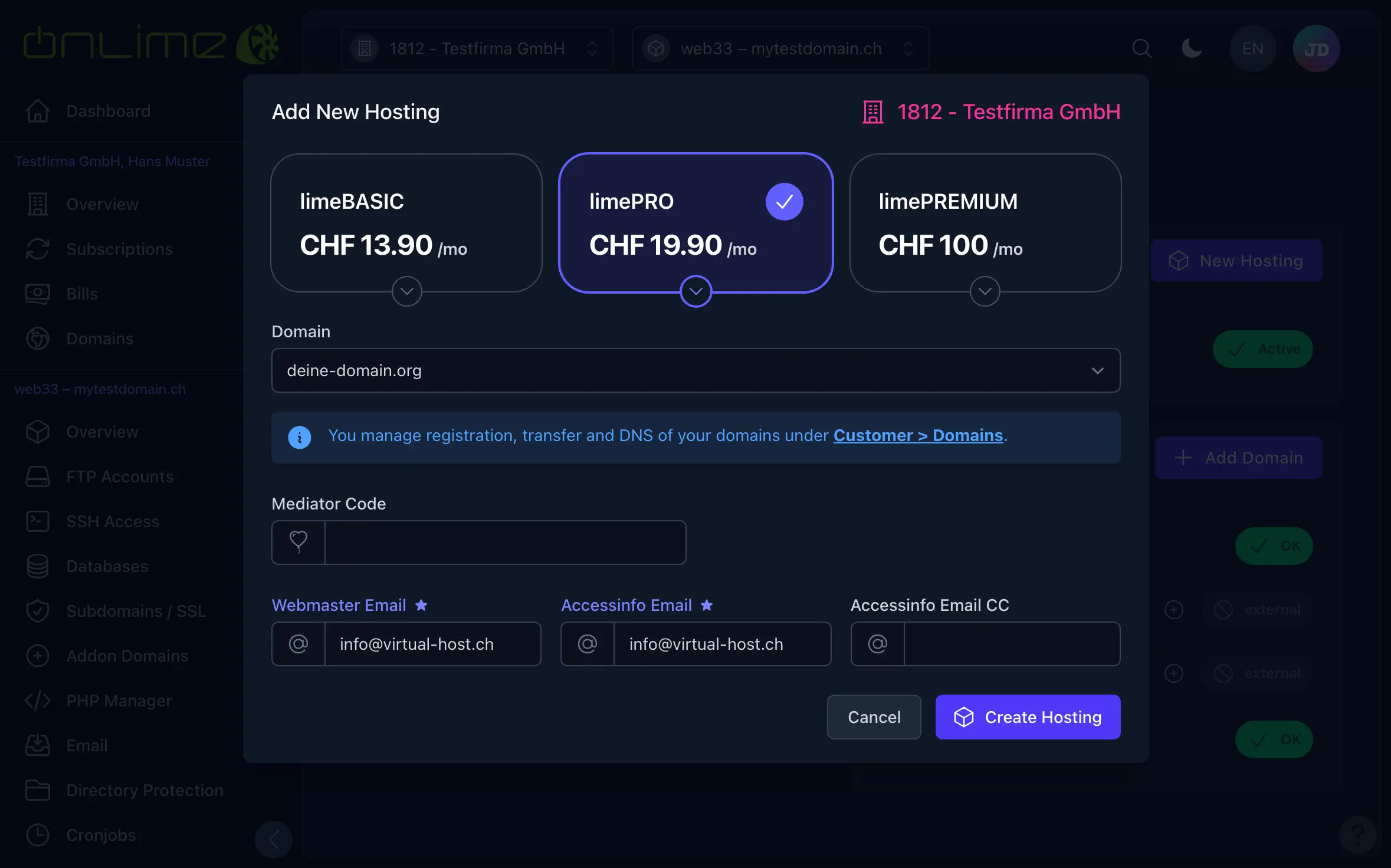
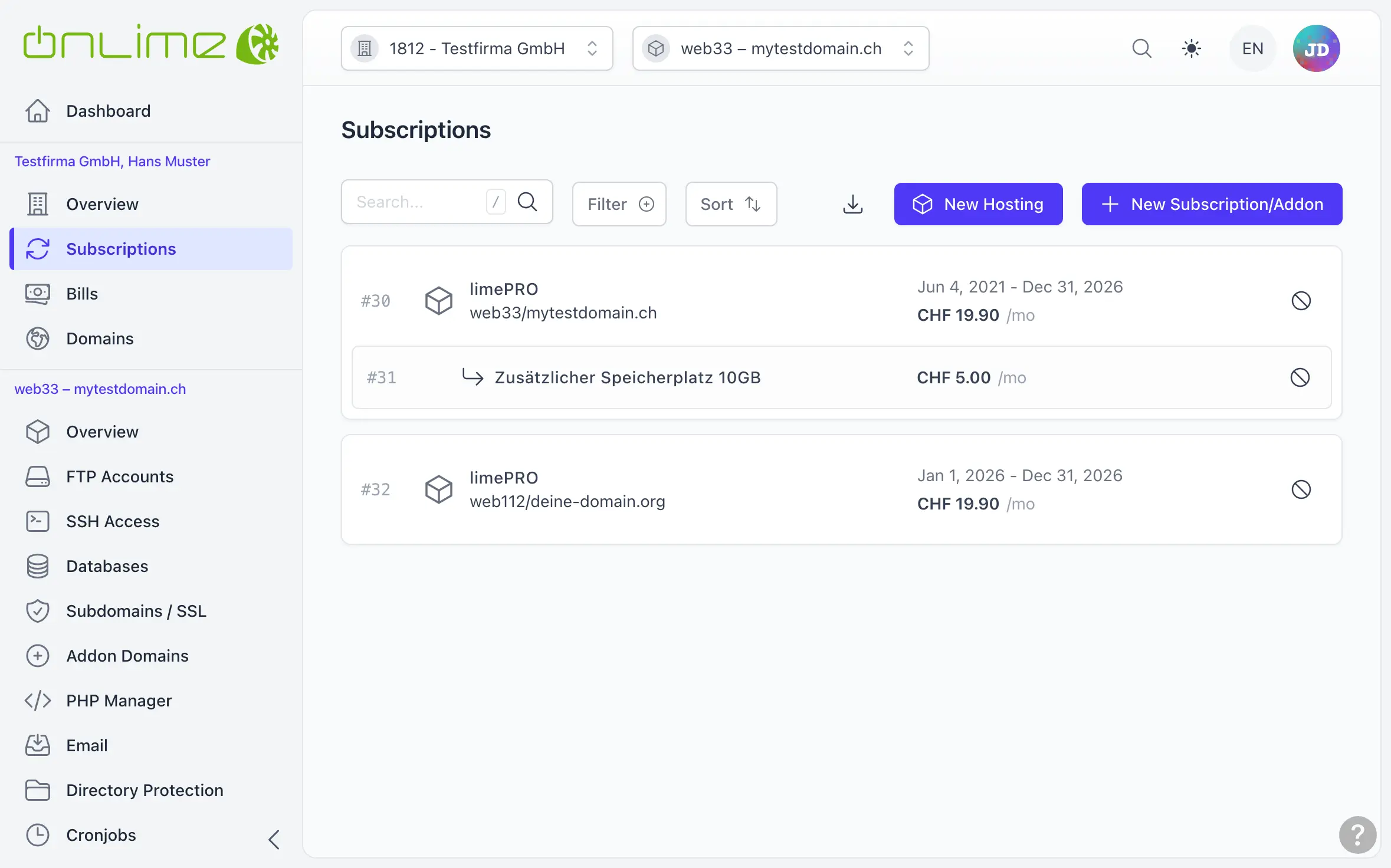
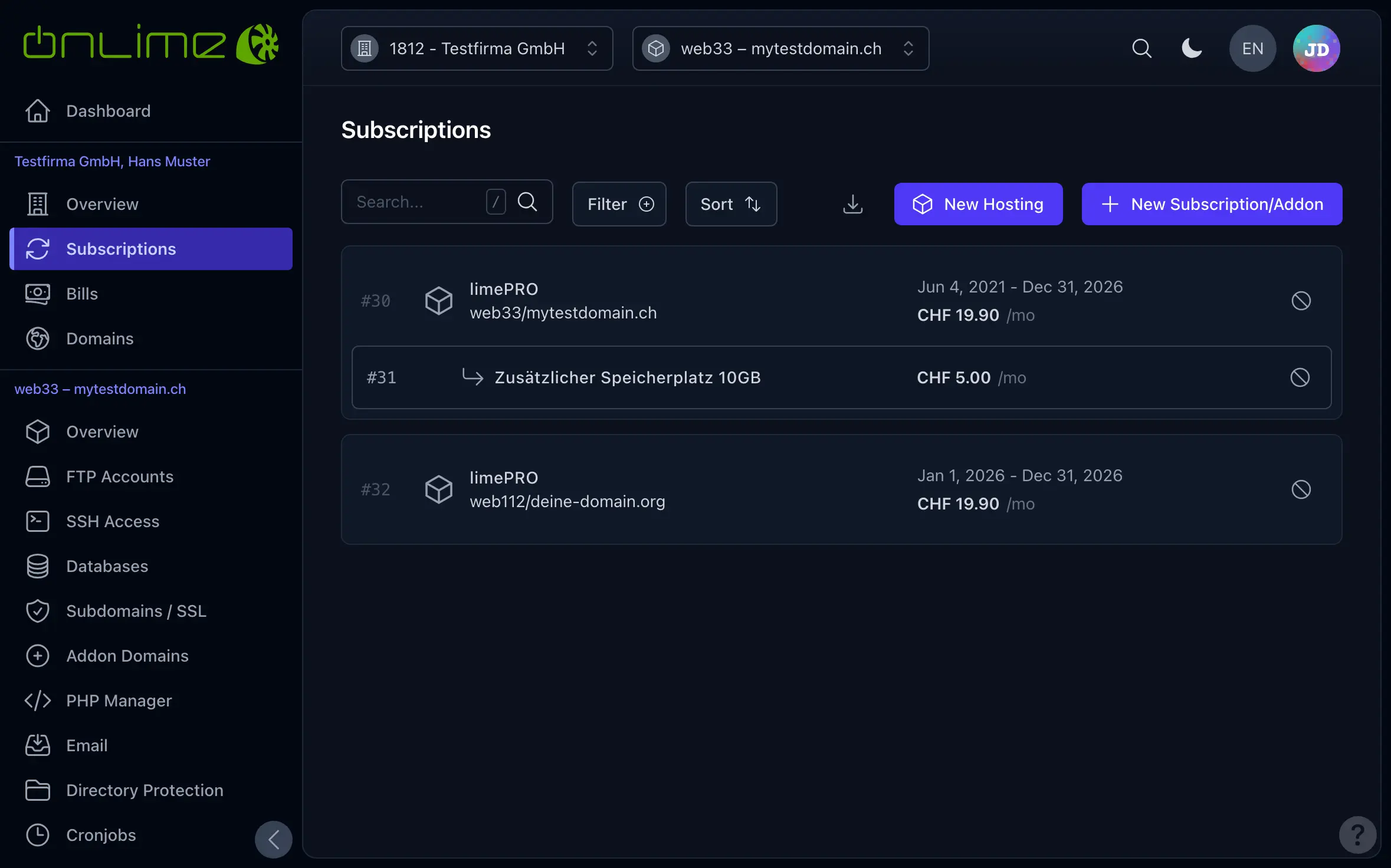
Within a few seconds, your hosting is set up and appears in the subscription overview. At the top, you can use the customer/hosting switchers to switch between different customers/hostings. The currently selected hosting is always shown in the left menu, where you'll find all settings.
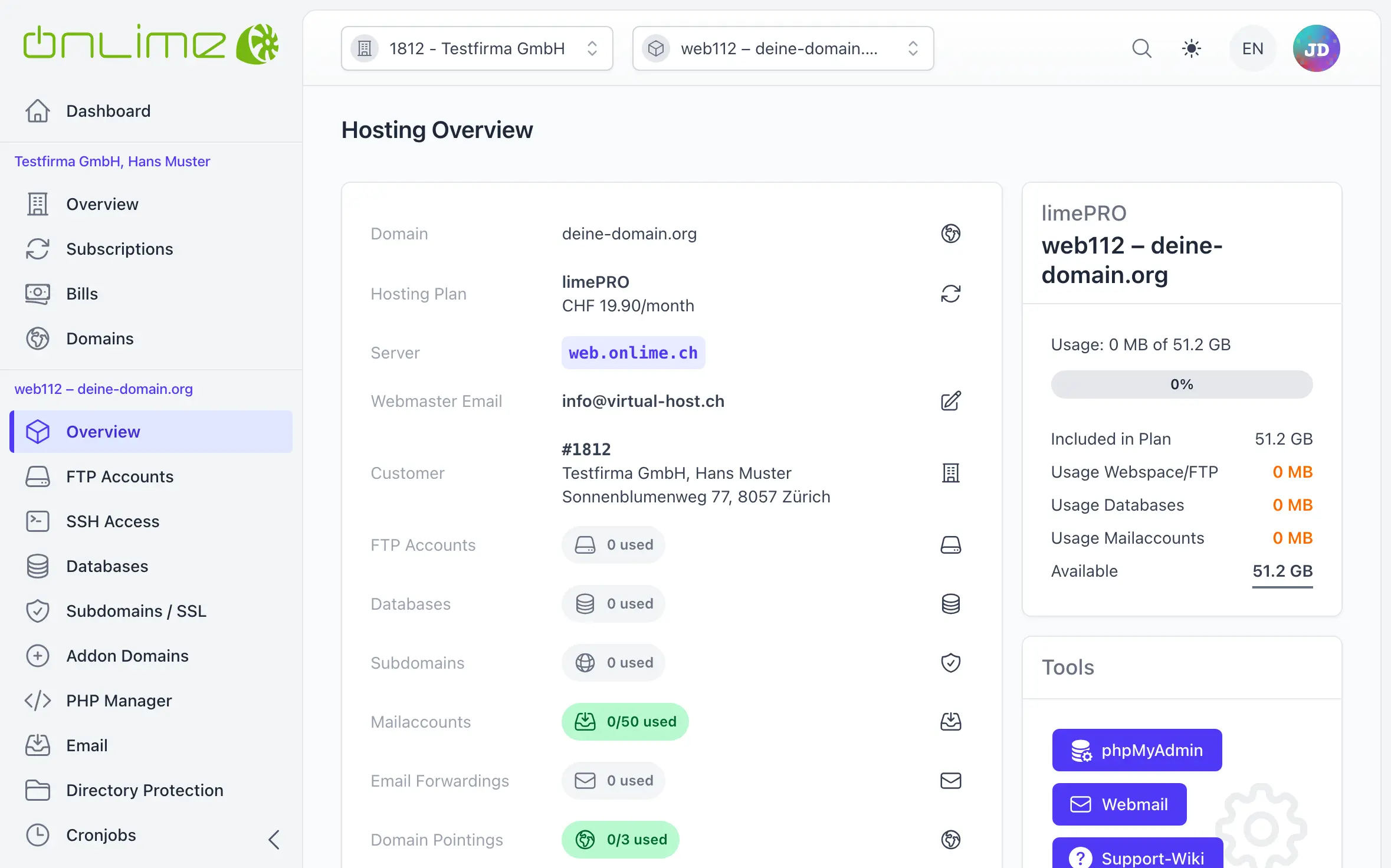
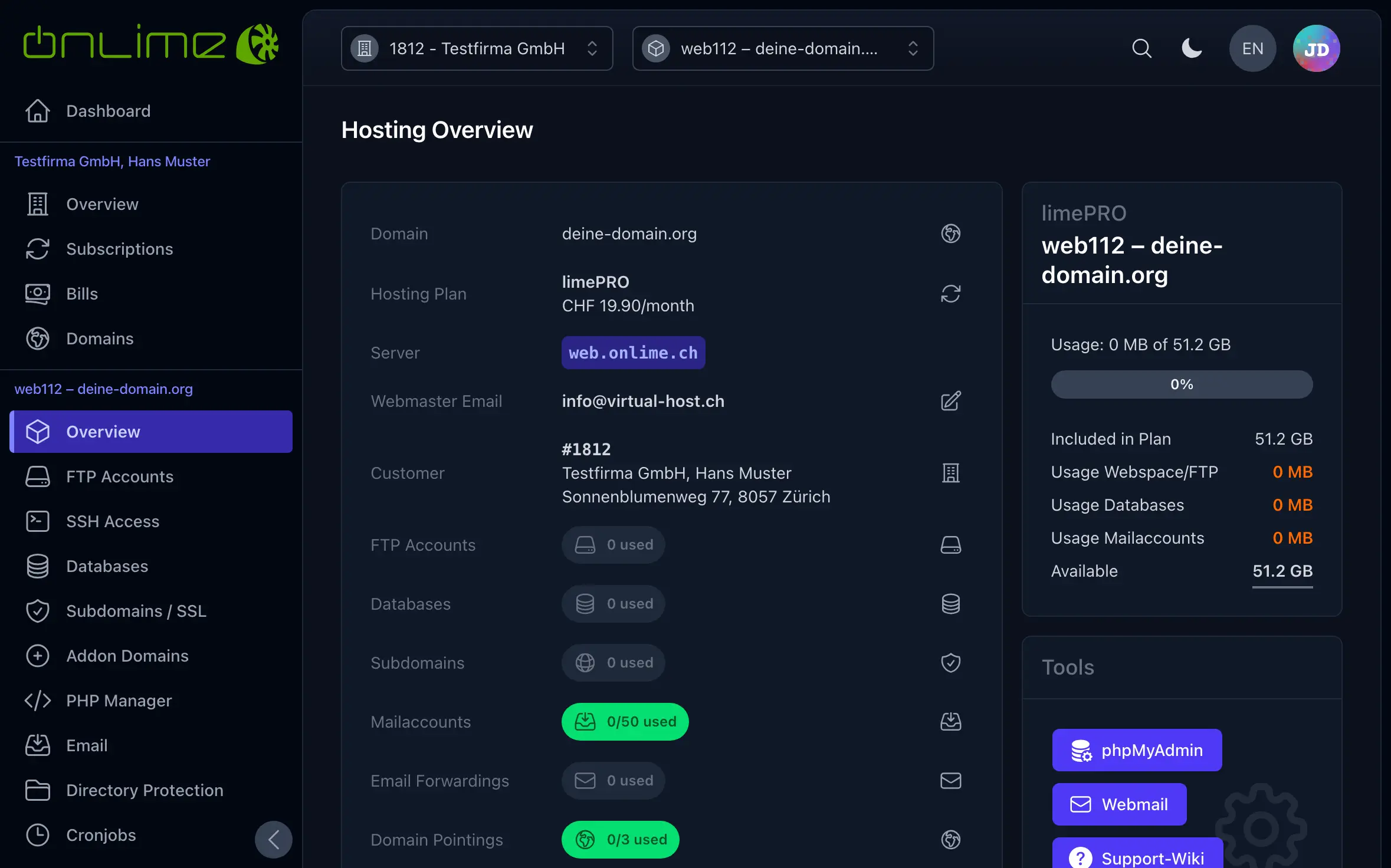
This is what the «Hosting Overview» of a freshly created hosting looks like:
Assign a Domain Later
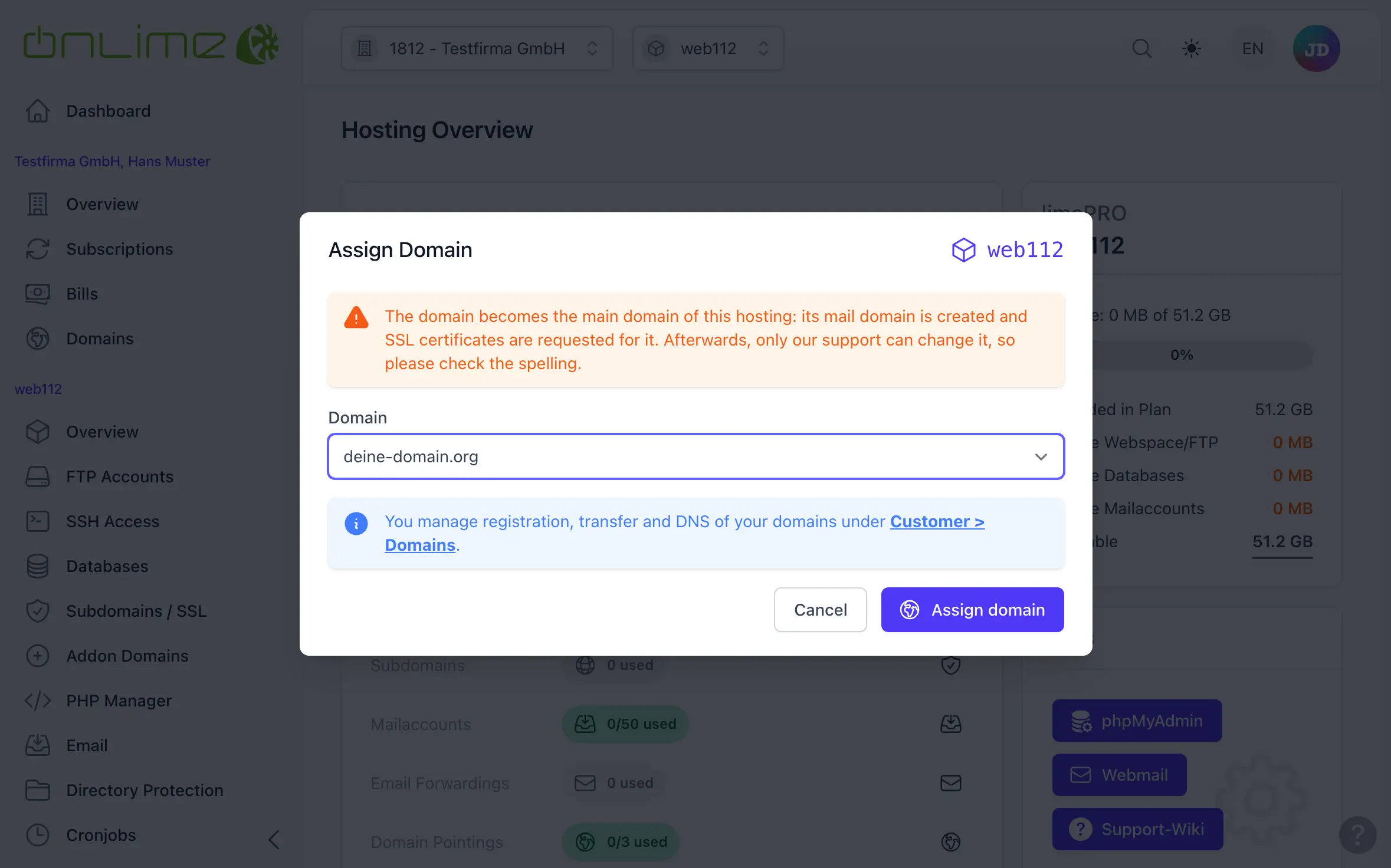
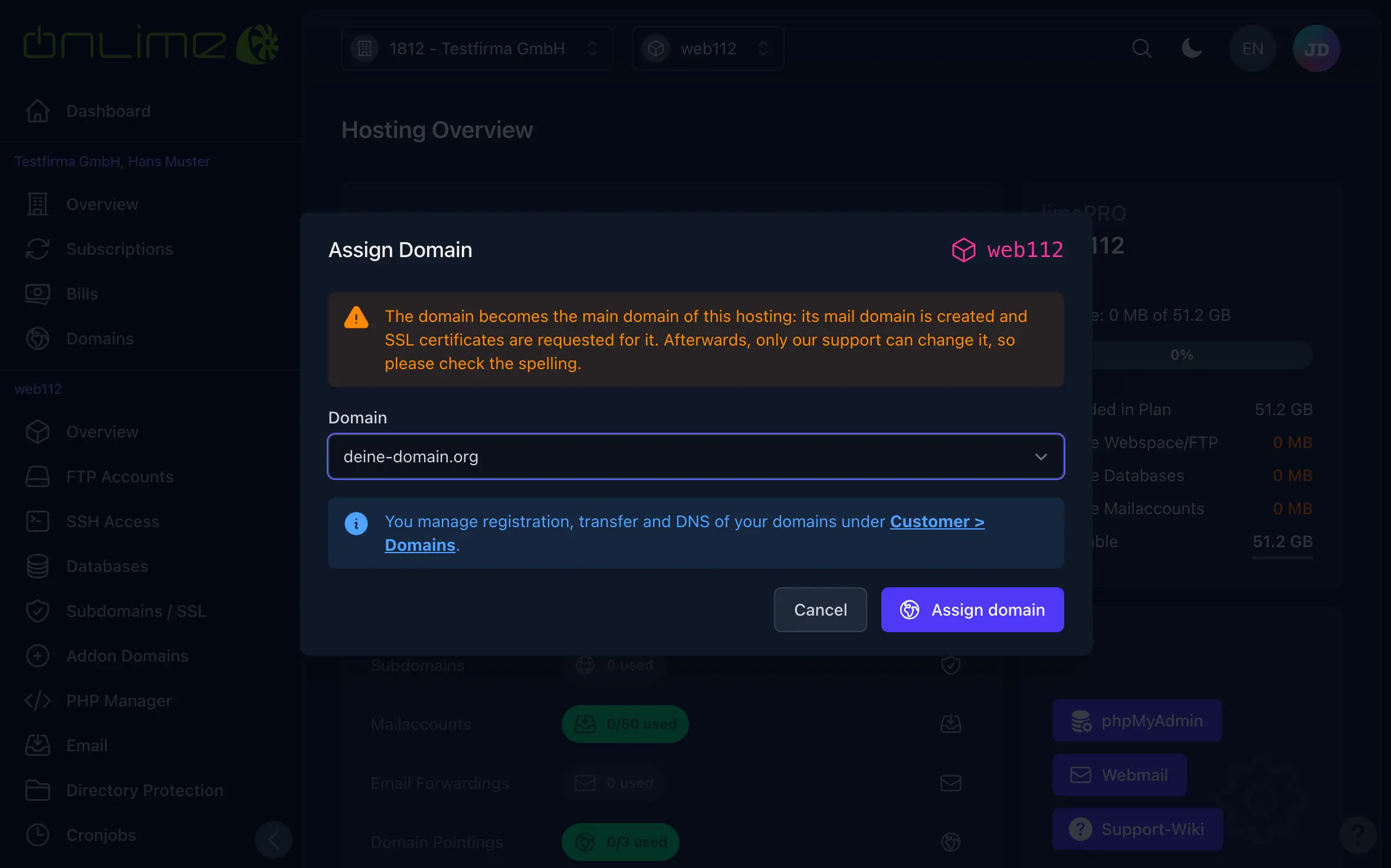
Did you create the hosting first? A hosting without a domain is marked «no domain assigned» and offers the «Assign domain» button in three places: in the hosting list on the customer «Overview», under «Subscriptions», and on the «Hosting Overview».
In the dialog, select one of the customer's domains that is not used by a hosting yet. If you have not set up the domain, choose «Add new domain ...» and type it in: it is only added, exactly as in step 3.
Check the spelling
The domain becomes the main domain of the hosting: its mail domain is created and SSL certificates are requested for it. Afterwards, only our support can change it.
It also works from the domain's side: under Customer > «Domains», a domain that is not in use yet offers the button to assign it to a hosting that still needs a domain.