Add a Domain
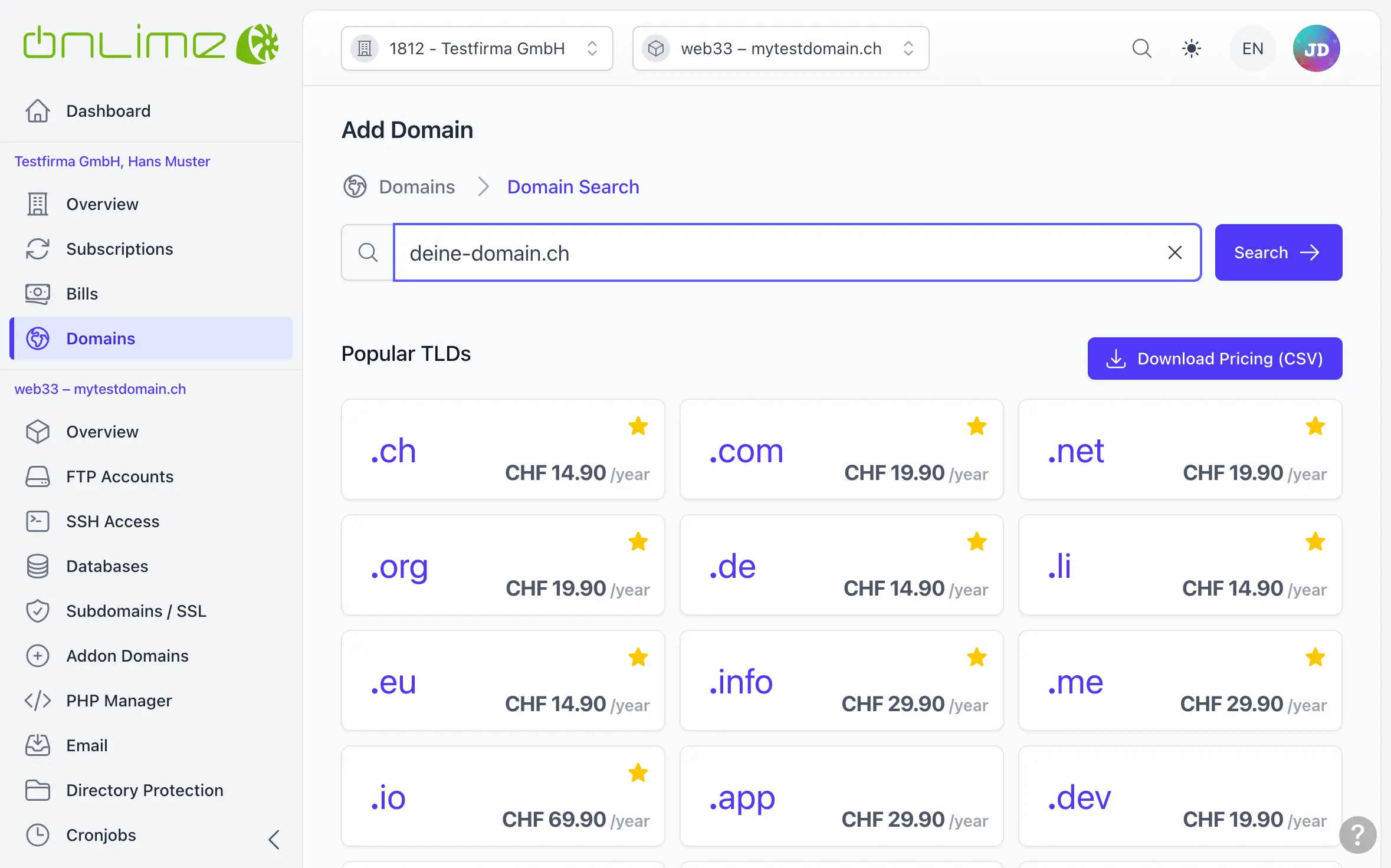
Before you can use a domain for a hosting, it has to be added to the customer. You have three options, and all of them start the same way, with the domain search:
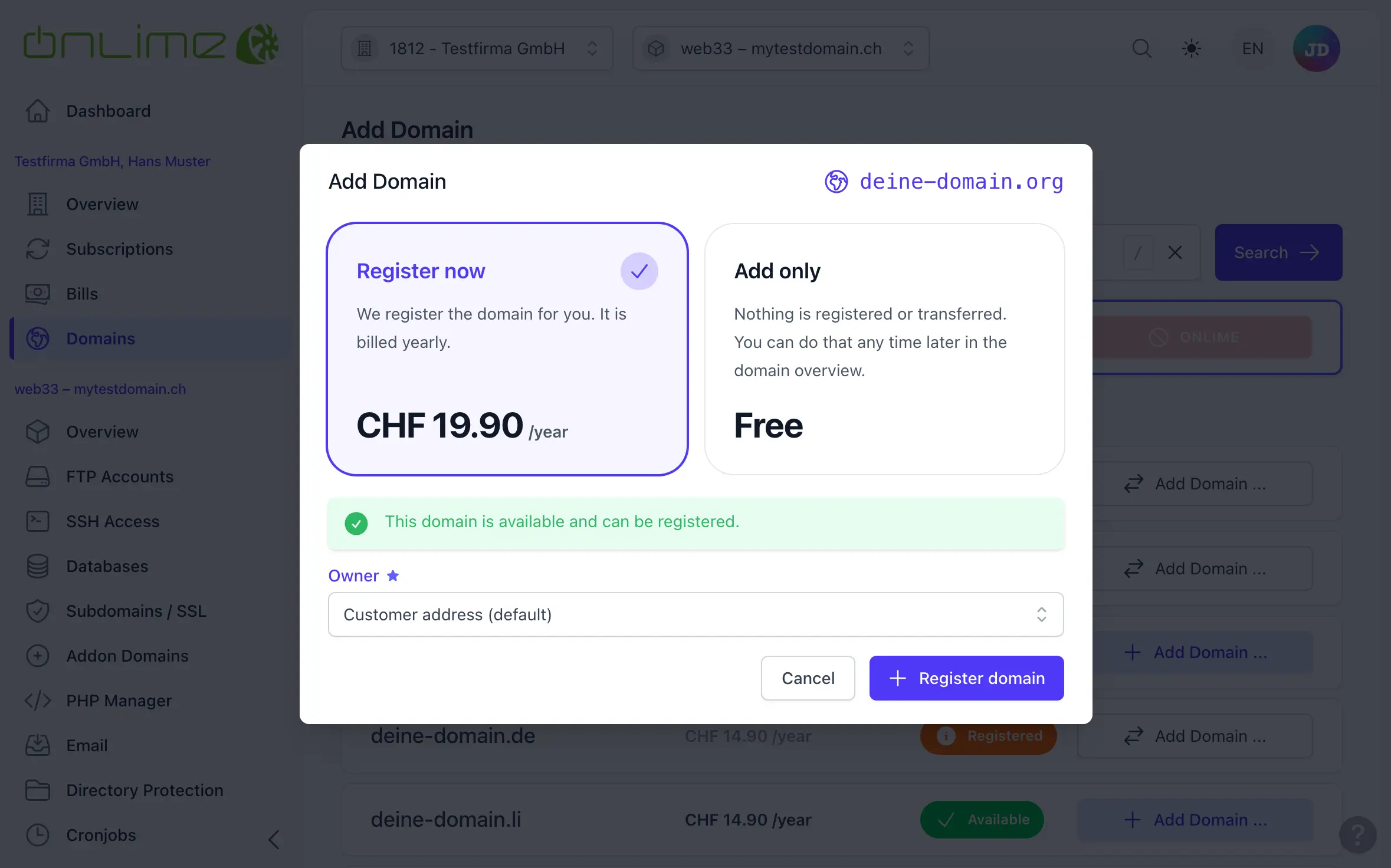
- have a new domain registered,
- have an existing domain transferred to us,
- or only add a domain that you manage yourself at another registrar.
On the customer's «Overview» or under «Domains», click .
1. Search for the Domain
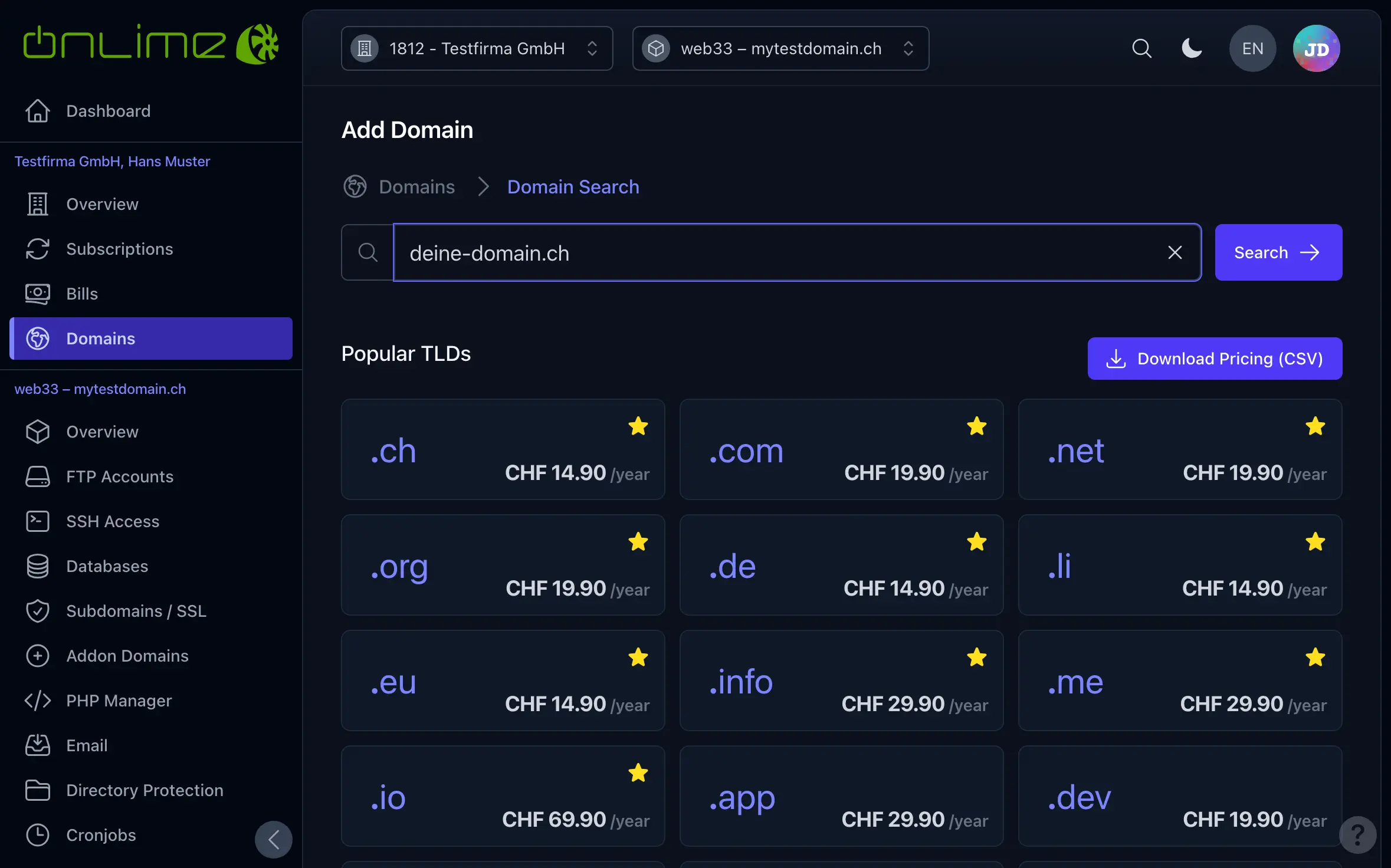
Here you can search for a domain and check its status (availability). You’ll also use this search when adding an existing domain — either to transfer it to us or simply to link a domain that you manage yourself.
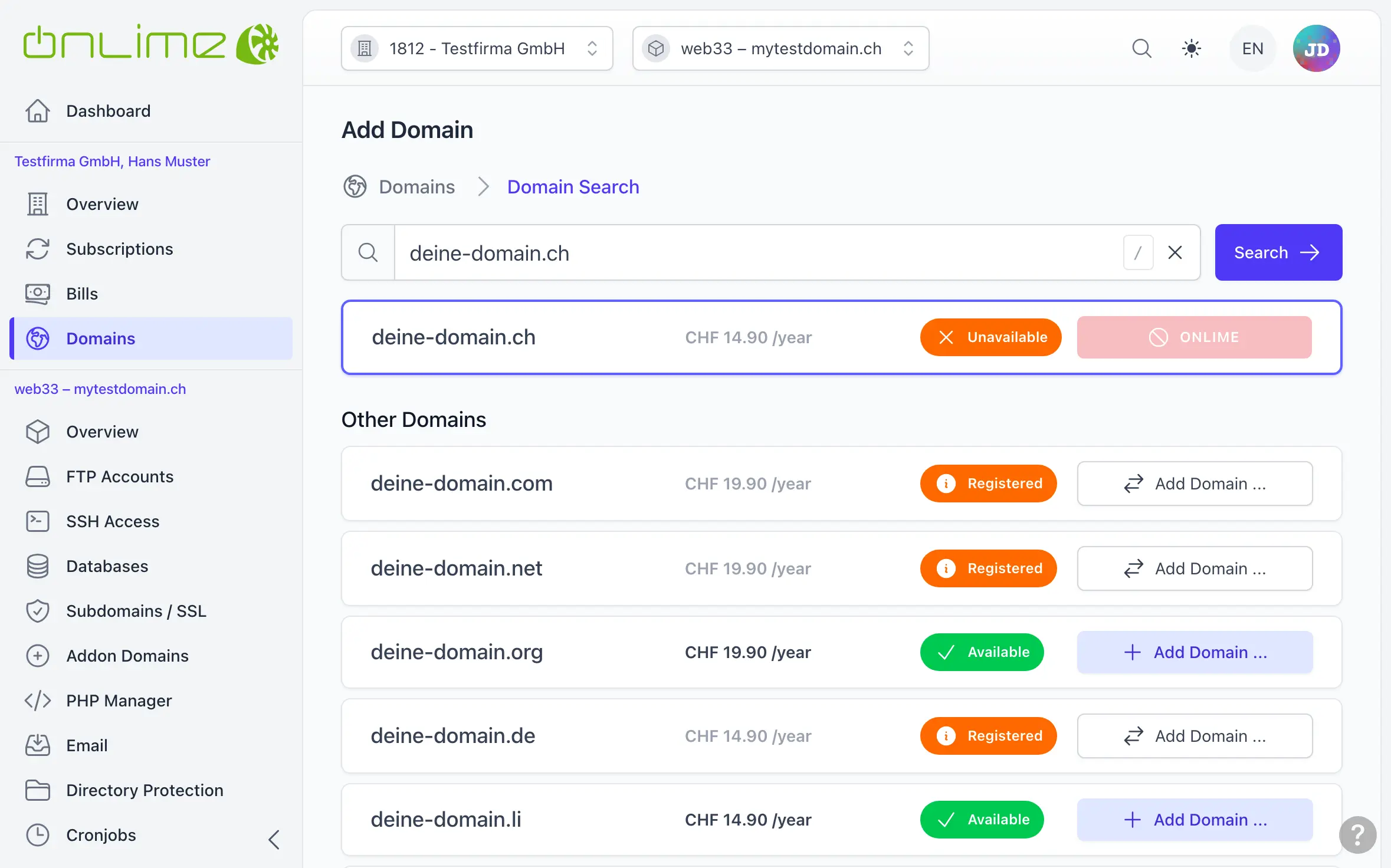
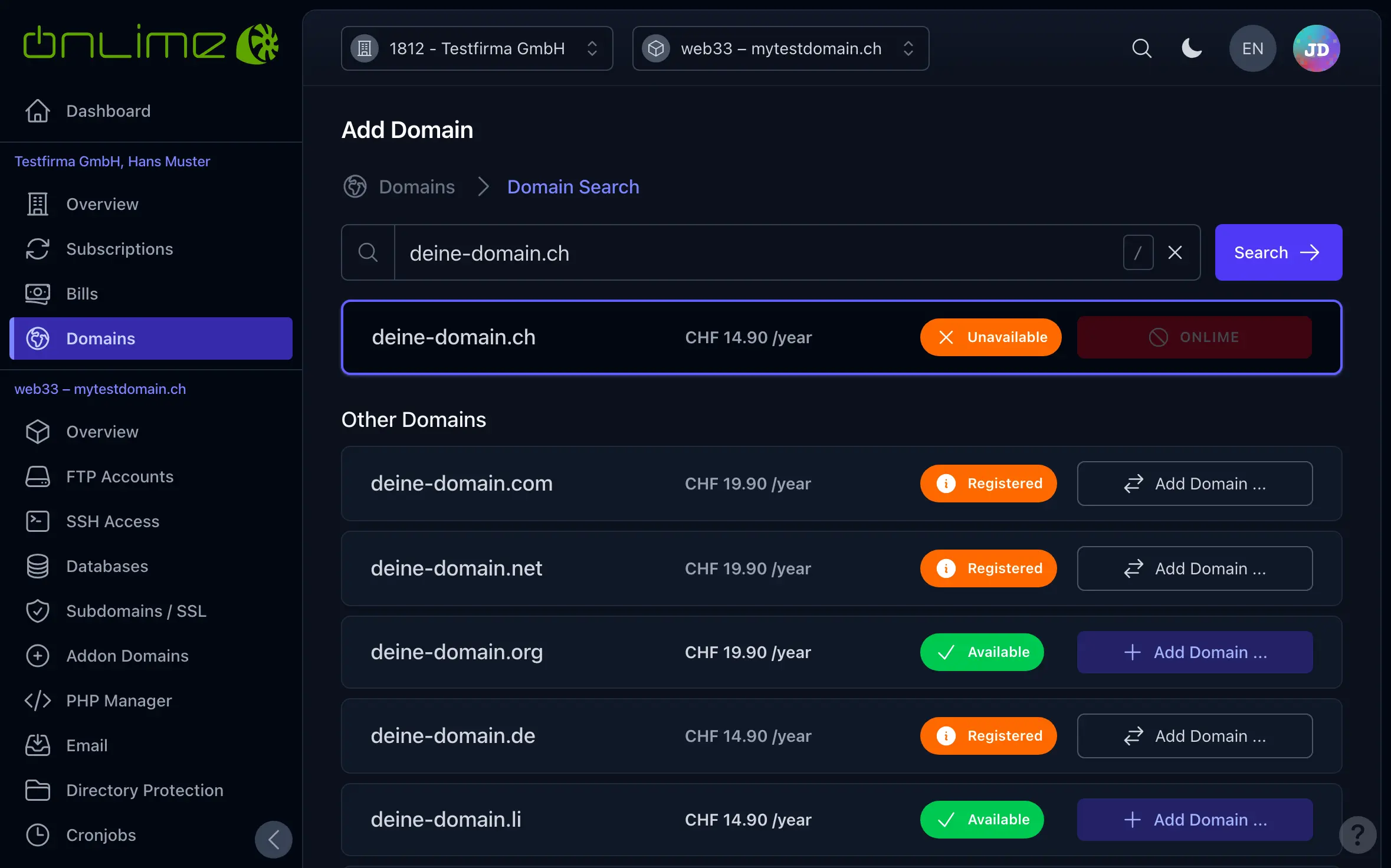
- If a domain is Available, it can be newly registered.
- If it is Registered, you can have it transferred by us.
In any case, click the button (shown as for a registered domain)!
TIP
No worries — nothing is ordered yet. In the next step, you choose whether we register/transfer the domain, or whether you only add it and manage it yourself through another registrar.
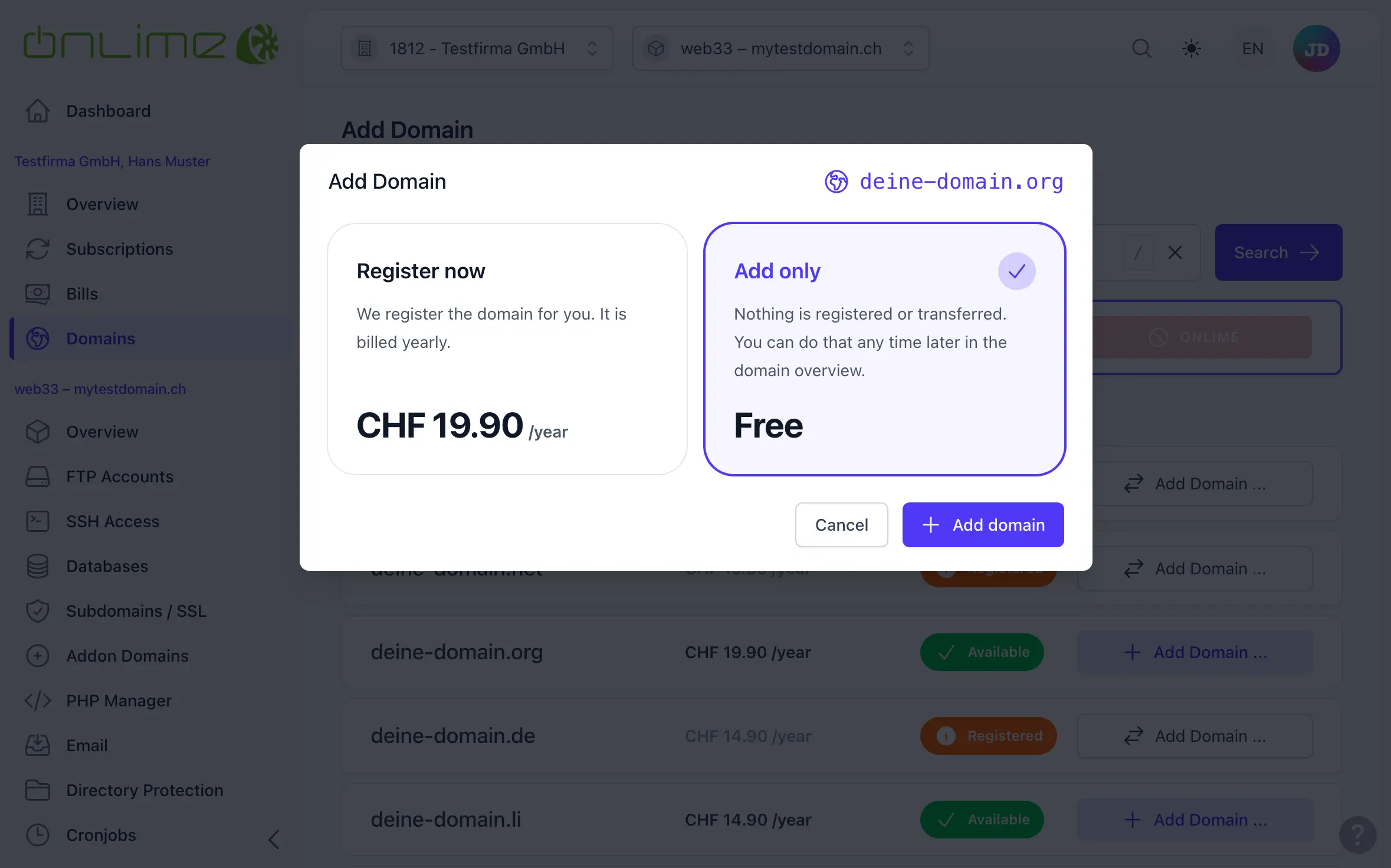
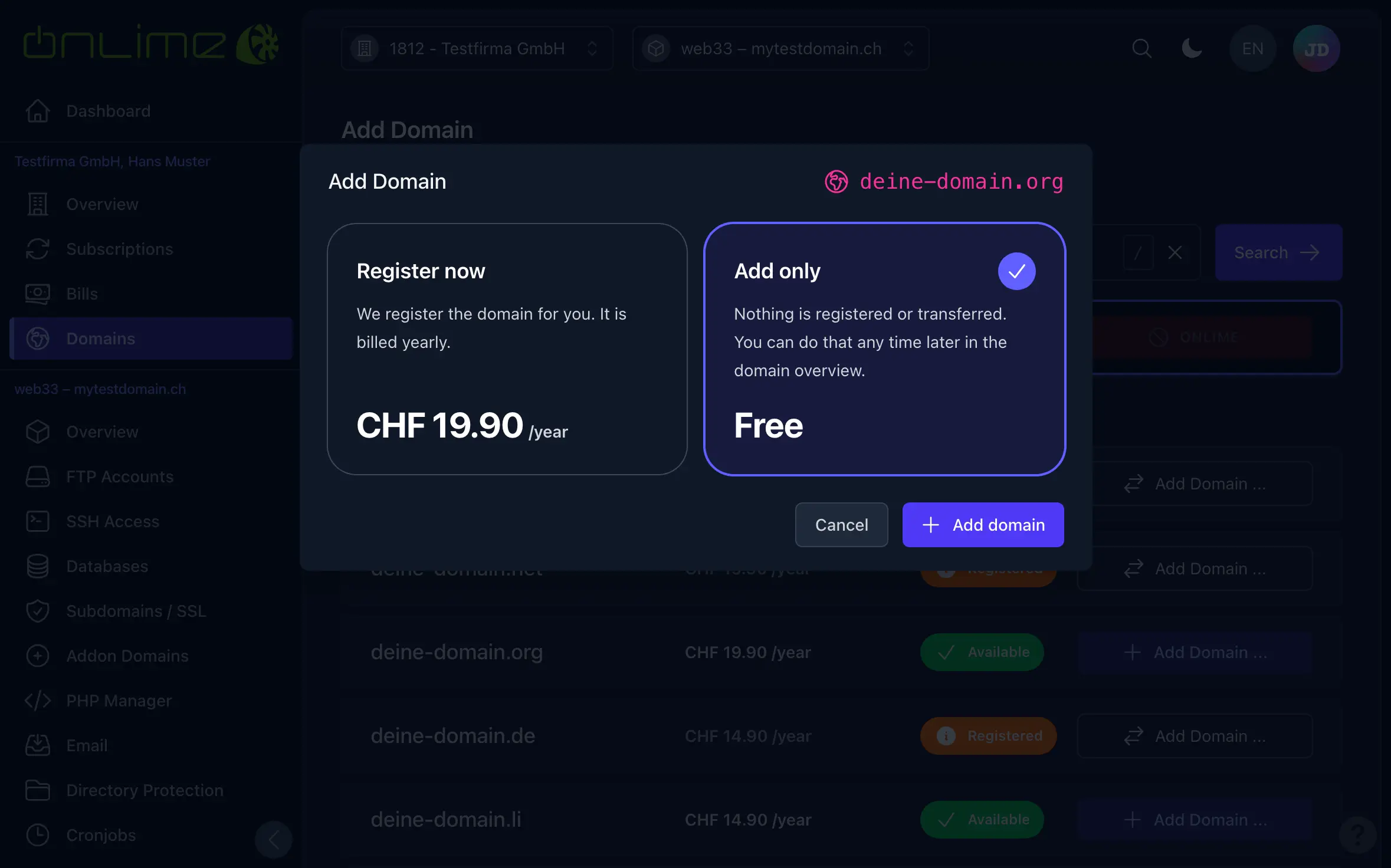
2. Register, Transfer or Only Add
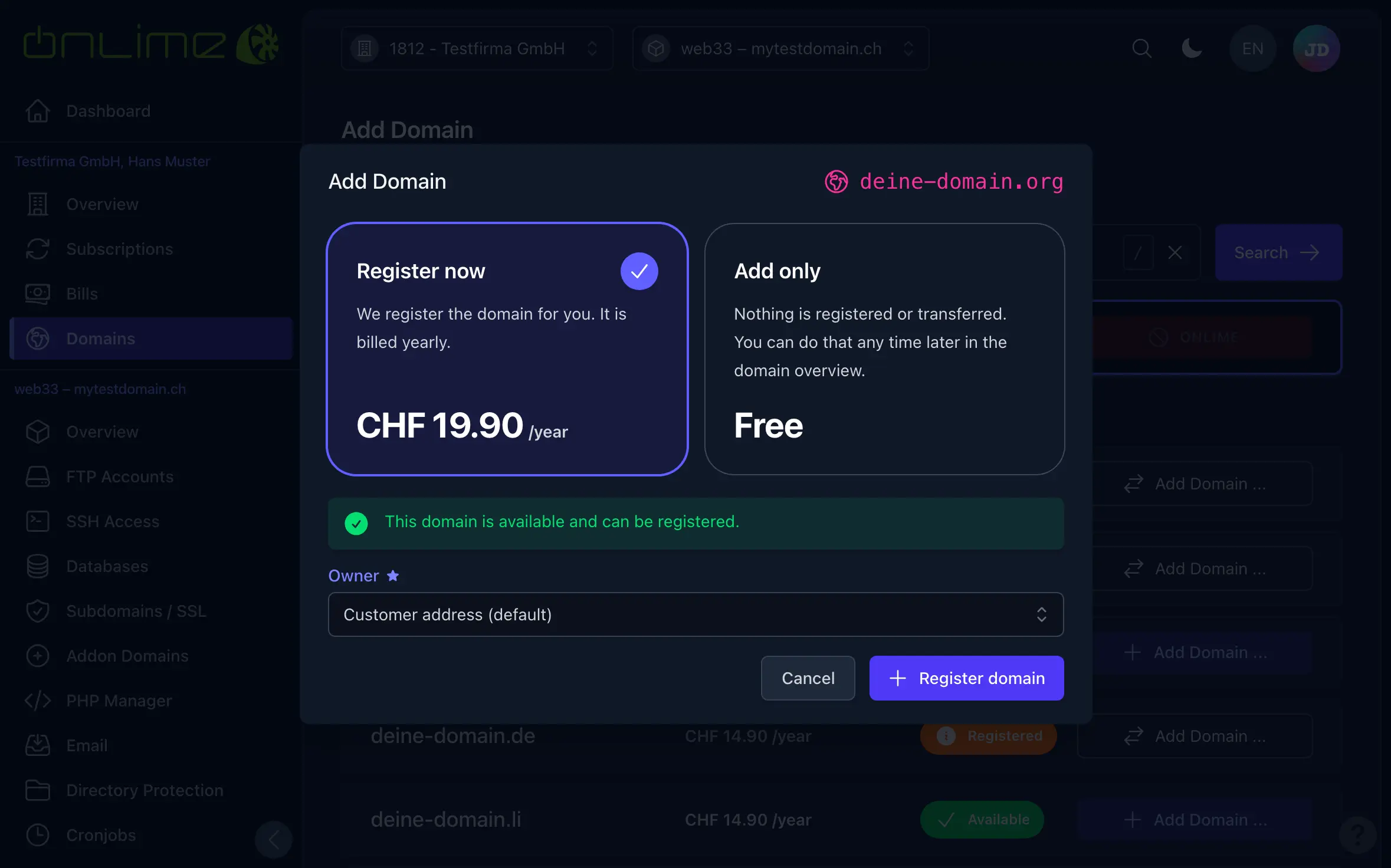
For a domain that is still available, choose «Register now» and click to start the domain registration.
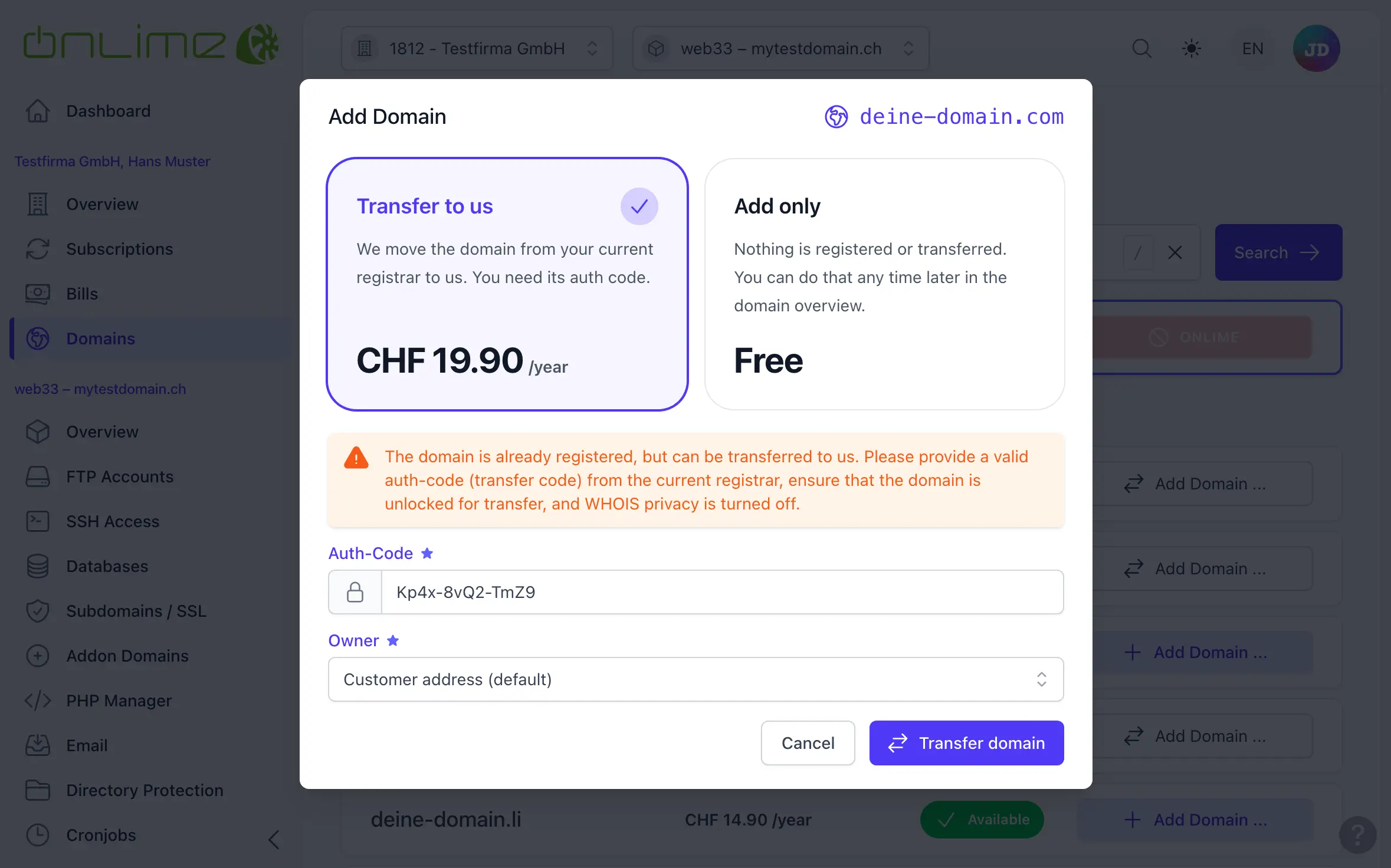
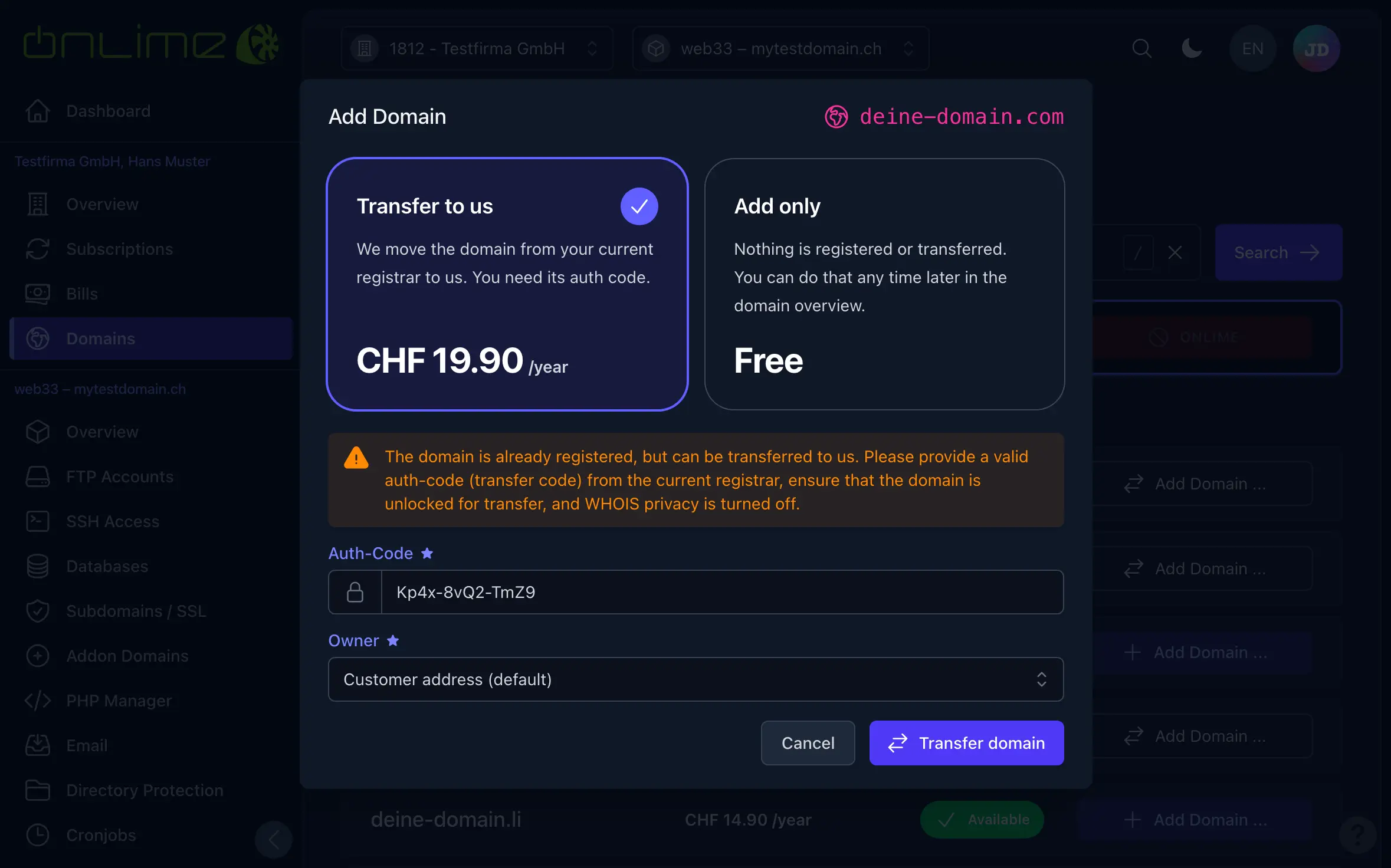
For a domain that is already registered, choose «Transfer to us», enter its auth code and click . We then move the domain from your current registrar to us.
Before you transfer a domain
- You always need the auth code of the domain (also called transfer code or EPP code). You get it from your current registrar.
- The domain has to be unlocked for the transfer at your current registrar. Many registrars lock a domain against transfers by default («transfer lock» or «registrar lock»). Remove that lock first, otherwise the transfer is rejected.
- WHOIS privacy has to be turned off for the time of the transfer.
In both cases, you can instead simply choose «Add only» and click on — you can easily register or transfer the domain through us later if you wish.
3. Check Domain Overview
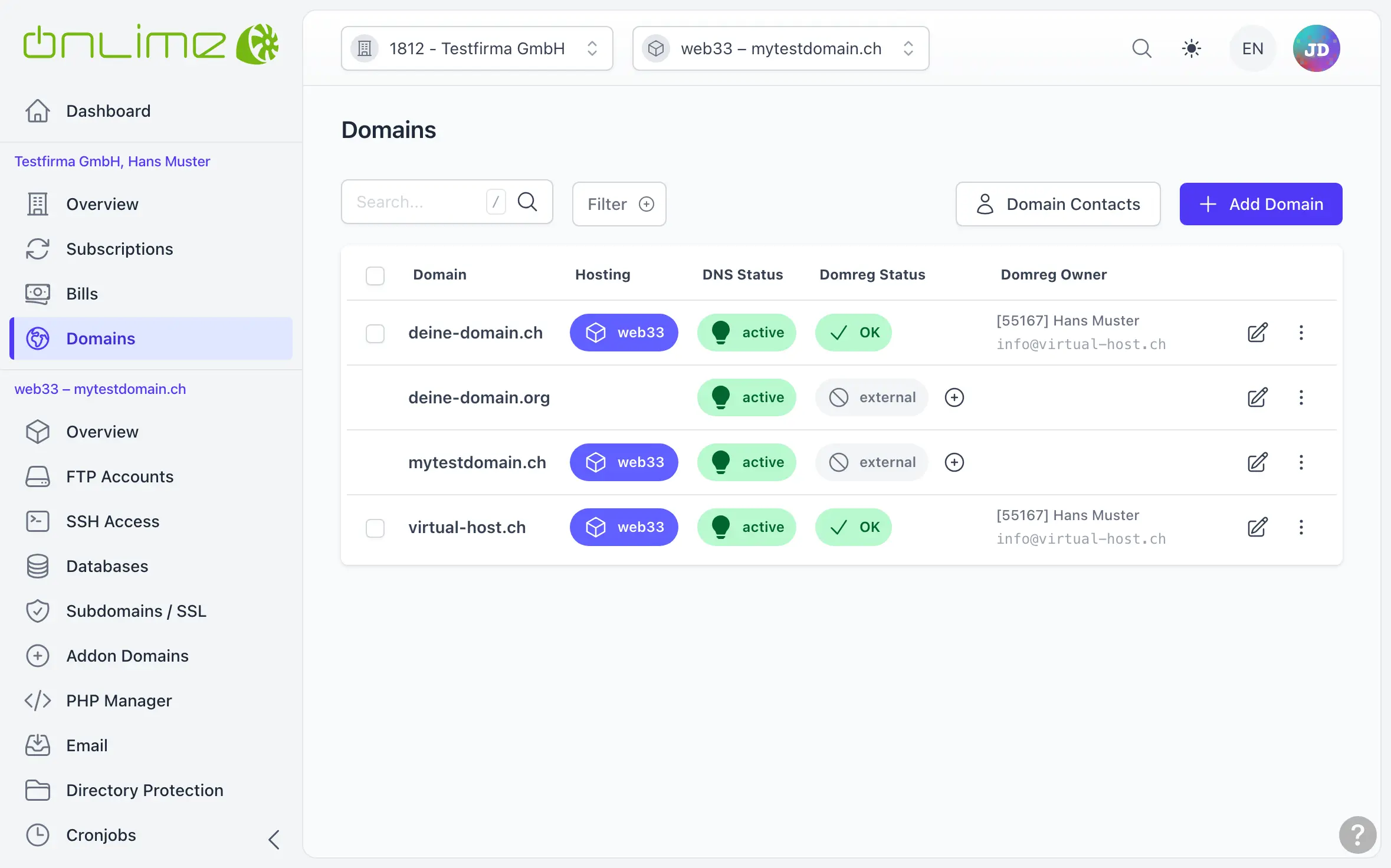
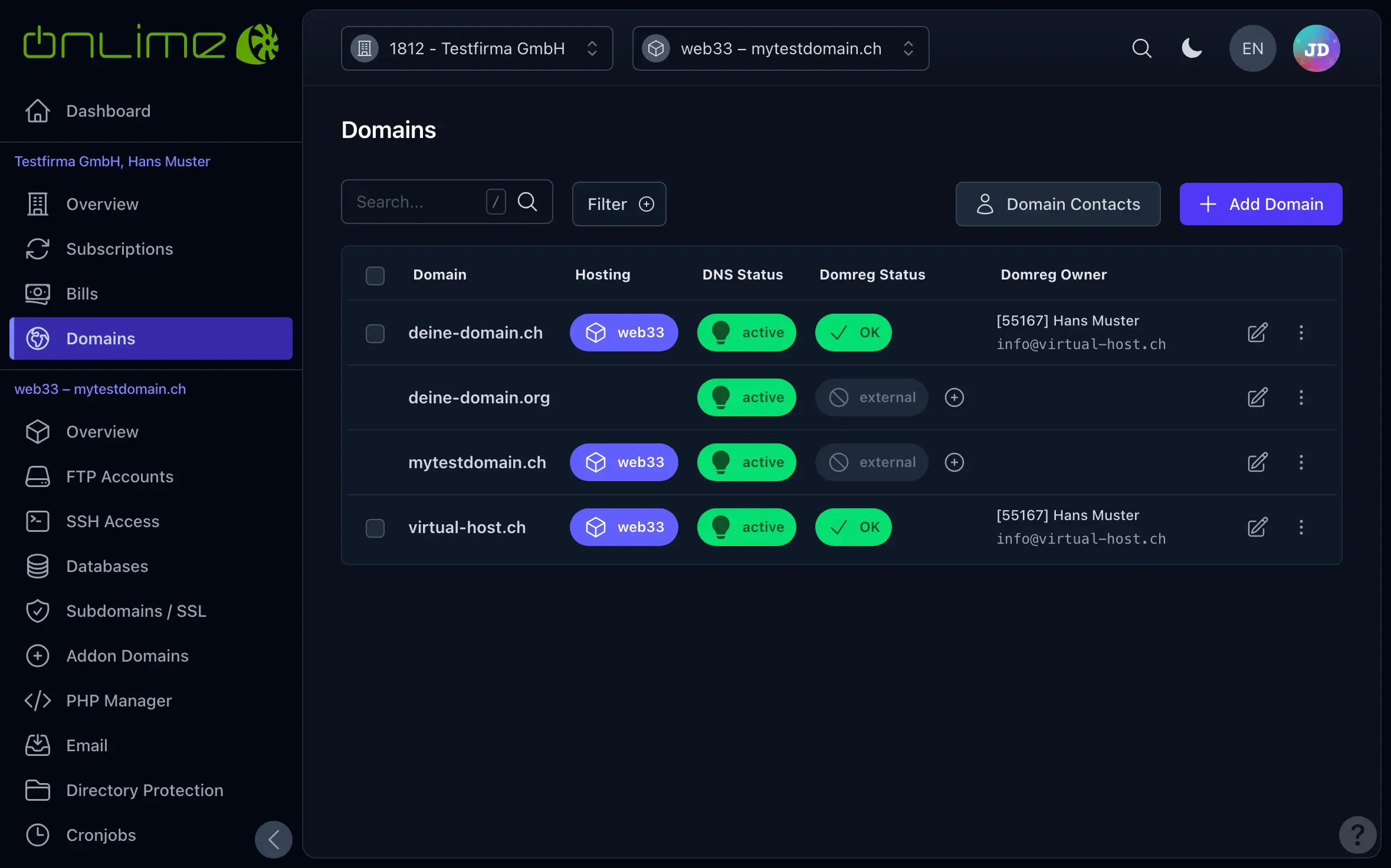
The newly added domain now appears in the domain overview. Using the , you can register or transfer the domain through us at any time, if you haven’t already done so.
What's Next?
- Create a hosting for the domain: go to the customer «Overview» or «Subscriptions», click and select the domain. See Create New Hosting.
- Use it on an existing hosting: as the main domain of a hosting that has none yet, see Assign a Domain Later, or as an addon domain.
- Manage its DNS records under Domain Settings (DNS).
Everything about registration renewal, nameservers and the badges in the overview is explained under Domains.